
Are you ready to hack data? It's as easy as 3-2-1 🚀
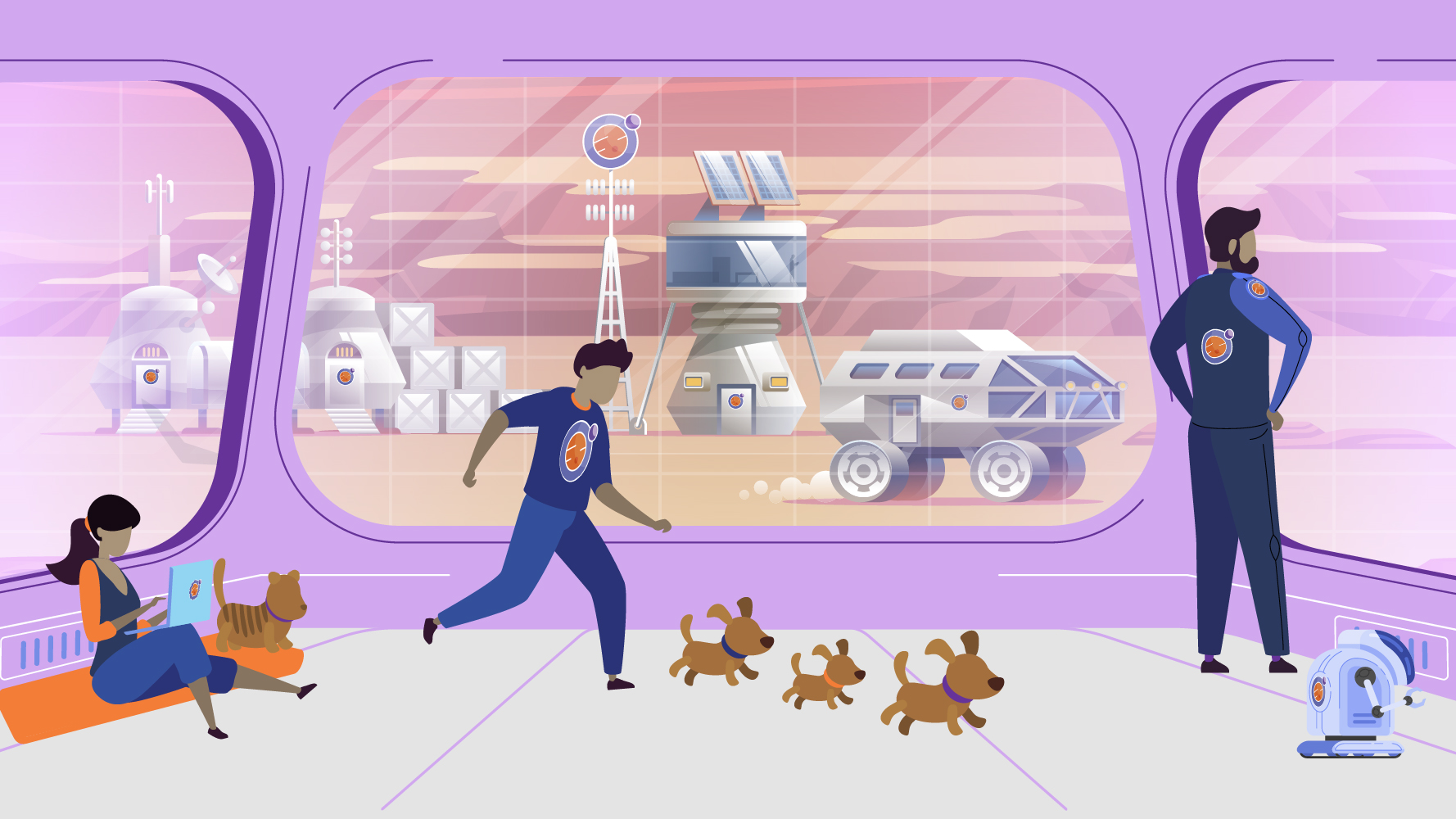
Watch the introductory video to get you started with our Curiosity (Beginner) Hackathon challenge.
Before you start your hackathon challenges (below), please be sure to complete the tutorials. These will give you a strong foundation to complete the hackathon challenges and work through any errors you might encounter.
Tutorial 0: Intro to Jupyter and Python series and Video
Tutorial 1: Breaking code and breaking down the code and Video
Tutorial 2: Intro to Python and Data Frames and Video
You can access the notebooks with your challenges through the links below.
Keep this tab open in your browser while you work.
Save your notebooks on a regular basis by pressing ctrl + s (or ⌘ + s on a Mac).
Logout when you have finished working on your notebooks by clicking the Logout button in the top right hand corner.
Challenge 0: Which pets should we bring to Mars?
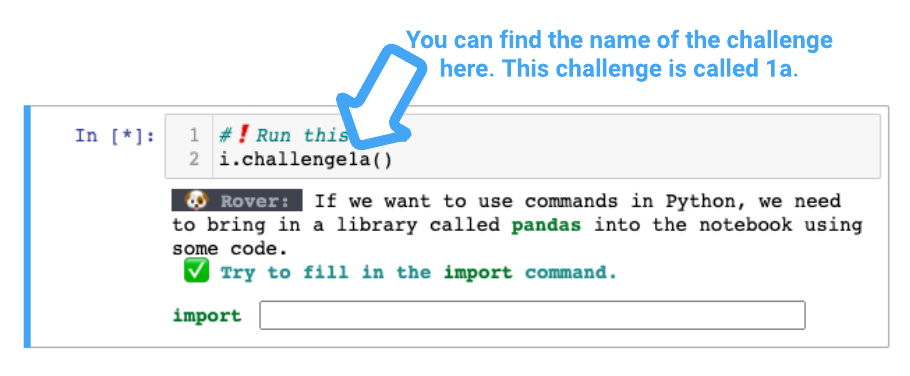
Challenge 1: Accessing the Pet Archives
Challenge 3: Narrowing down the Data
Challenge 4: Choosing our Pets
Challenge 5: Visualizing the Data
Challenge 6: Drawing a Conclusion & Sending them off!
Check out this gif to help you troubleshoot.
If your code cell is running, an asterik [*] should appear to the left of the cell and the circle beside Python 3 in the top right corner of your notebook should be filled. To get your code cell working again, make sure your code cell is selected, then click on the stop (⏹) icon in the tool bar. The filled circle in the top right beside Python 3 will become an open circle. Next, you’ll need to click on the Run icon from the toolbar (or shift+enter or control+enter) to run the code cell again.
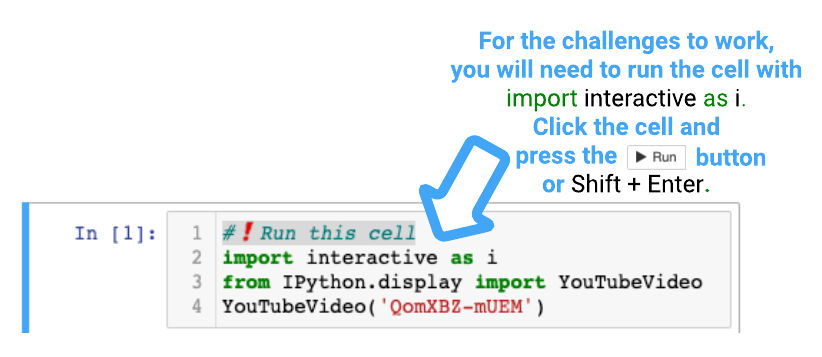
Code cells with #❗️Run this cell need to be run in order from the top of the page to the bottom within the notebook. Remember, to "run" a notebook cell, we can either use the Run button above or press shift + enter. If it doesn't work, try hitting the stop button (⏹) and try again.
If you run a code cell and you see a "NameError". It is very important that you run the very first code cell within the notebook that says import interactive as i. Once you do this, then go back and run the cell that gave you the error again. The error should be gone now and you can continue.
Submit your work by submitting your Challenge 6 notebook file on the due date given by your teacher. For full submission details see your Hackathon Agenda document.
If you need help, on Monday to Friday from 9:00 am to 3:00 pm Mountain Time you can email the Callysto team at hackathon@callysto.ca. In your email, if you are having trouble with a challenge be sure to include the challenge name, a description of the problem, and a screenshot image of the error (if applicable).
🌟🌟🌟🌟🌟🌟🌟🌟🌟🌟🌟🌟🌟🌟🌟🌟🌟🌟🌟🌟🌟🌟🌟🌟🌟🌟🌟🌟🌟🌟
